Friday, August 21, 2009

Photoshop Interface

Adobe Photoshop is a powerful tool for editing photographs and graphics. The first step in learning photoshop is to familiarize our self with photoshop interface, which consists of five basic componets:
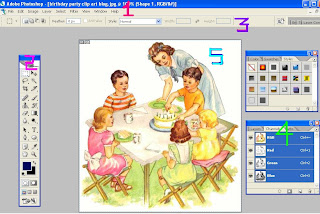
1. Menu Bar: From here, you can access
of the commands and features in
photoshop
2. Toolbox: It has various tool for editing
the image. To display or hide :
(Windows -> Tools)
3. Options Bar:
It sets the options for the
currently selected tool.
4. Palettes: It has various panes to
control different aspects of the projet.
Including layers, channels, paths,
history, etc.(There are 5 palettes by
default)
5. Image Area: The area where images are opened and appeared.
Knowing Toolbox
The toolbox has various tools for editing and creating an image. The photoshop toolbox holds 20 tools and 5 section of tools as shown in the fig. below.


The toolbox contains all of the various Photoshop tools. In addition to the visible tools, the tools with a small black arrow in the lower-right corner contain fly-out menus with other related tool choices. The example to the left shows the Brush Tool is depressed, displaying the Brush Tool and the Pencil Tool in the fly-out menu.

Thursday, August 6, 2009

Introduction To Photoshop

The fact of photoshop is that every picture you've seen such as posters,book covers,magazine pictures and brochers has either been created or edited by Photoshop.The powerful tools of the Photoshop are used to enhance and edit pictures are also capable to use these pictures in the digital word including the infinite possibilities in the Internet.It is an extremely powerful and easy to use application.
Now Jack asked me a question that what is photoshop??
I told him that photoshop is used for creating and modifying images for the web and for other media applications. Traditionally, photoshop is a professional image editinf software package that can be used by the experts.But not only experts,routine computer uses can handle this software.This is true that after four generations of development, Adobe Photoshop has the user-freindly interface with complete set of tools.
Harry had a question that what can we do with photoshop??
I told him that we can use photoshop to 'alter' images like photos,downloaded icons, or scanned artwork.
Altering an image includes changing the colors within an image,modifying the size and scale of an image or putting one picture 'within' another.
But, besides altering images, Photoshop has a variety of tools that help you to create images from scratch.
On the web, you often need to make custom icons, buttons, lines, balls or text art. Photoshop makes all of this quite easy.
Jack and Harry got so impressed that they would like to know more about Photoshop.Hope you also what to learn more about Photoshop.If you are interested then you are most welcomed and Thanks for reading.

Breaking Text Apart

You can break apart text to place each character in a seprate text block.After you break text apart, you can quickly distribute the text blocks to different place on the stage and change the color of each character seprately.
Step 1: Create a plain text using text tool in Flash, say a text 'ANIMATION'.
Step 2: Select the Selection tool and click a text block.

Step 3: Select Modify --> Break Apart (Ctrl + B).Each character in the selection text is placed in a separate text block.The text remains in the same poition on the Stage.
Step 4: Select the text block one by one and change their colors.
Step 5: Make the change in the positions of the alphabets.
Step 6: Click in the Second keyframe and press F6 to insert keyframe. Make a change in the color and the position of the alphabets so as to produce an animation sequence.
Step 7: Repeat the step 6as far as desired to create animation.
Step 8: Save the work and test the movie.(Ctrl + Enter).
Thanks for reading!!

Friday, July 17, 2009

Using Tween To Animate

Hello,
Creating an animation by using frame-by-frame technique requires lot of work and attention because we have to draw every frame on our own .The term 'Tweening' means 'in between'.Tweening simply means going from one keyframe to another while taking small steps for each of the frames in between.
Flash has three types of Tweenings:
Motion Guide Tweenings:Moving objects from A to B along a customized path.
Tint Tweening:Graduated color changing an object.
Shape Tweening:Graduated change of one object into another.
So now I shall be telling you about what is motion guide.
Motion Guide meand moving you symbol in a predefined path such as curves or circles.I shall now tell you how to move Flash objects in circular,zig zag or curved paths using Flash motion guide.
For example you have to make a bird fly using a motion guide.
Step 1: Draw a ird or import it.
Step 2: Convert it to the symbol and delete it from the stage.
Move it to the library Panel.
Step 3: Drag a copy of bird to the stge.
Step 4: To enter a keyframe in frame 30.First click frame 30 in layer one on the timeline and then press F6.
Step 5: Right Click on frame 1 and choose Create Motion Tween.
Step 6: Right click on Layer 1.A pop-up menu appears.Flash now inserts a new layer on the top of layer 1,with the Motion Guide icon to the left of the layers name.
Step 7: Clixk on the Motion Guide Layer to make sure it is the active layer.
Step 8: Choose pencil from the toolbox. Make sure pencil mode is set to 'Smooth'.
With the pencil draw the line you want the bird to fly along.
Step 9: Now adjust the frame pointer ao that it points to frame 1.
Step 10: With the mouse, place the bird so that its center is at the neginning of your motion guide.(The center is indicated by a small + when selected). A black circle appears when the bird is attached to the motion guide.
Try zooming in or out if you just ant get the bird to snap to the guide.
Release the mouse button when the bird is snapped to the guide.
Step 11: Click from frame 30 and position the bird at the end of the motion guide just as you did in frame 1.
WOW!Congrats you have just created a motion giude tweening.The bird will now follow the motion guide when you play the movie.
Hope you understood everything that I told you.If you have any quires you can leave a comment or e-mail me at ranibhardwaj31@gmail.com .I will surly replay your quires.
Take Care and Thanks for reading!